Blocks
Audio
Embed an audio file from an HTTPS URL.
An audio block plays a file from an HTTPS URL. The public form shows a native audio player.
Screenshot placeholder
In the editor, insert Audio. Set the URL to https://example.com/audio.mp3. Capture the URL field.
Replace this box: save a PNG at public/docs-screenshots/block-audio.png

Use audio when the person should listen, such as:
- A short spoken intro.
- A clip they must hear before they continue.
How to add one:
- Open the form editor and click
+ Insert block, or type/audio. - Pick
Audiofrom the Media group. - Paste an HTTPS audio URL.
Screenshot placeholder
In the editor, open the insert dialog and filter to audio. Capture the Media group and the Audio row.
Replace this box: save a PNG at public/docs-screenshots/block-audio-insert.png
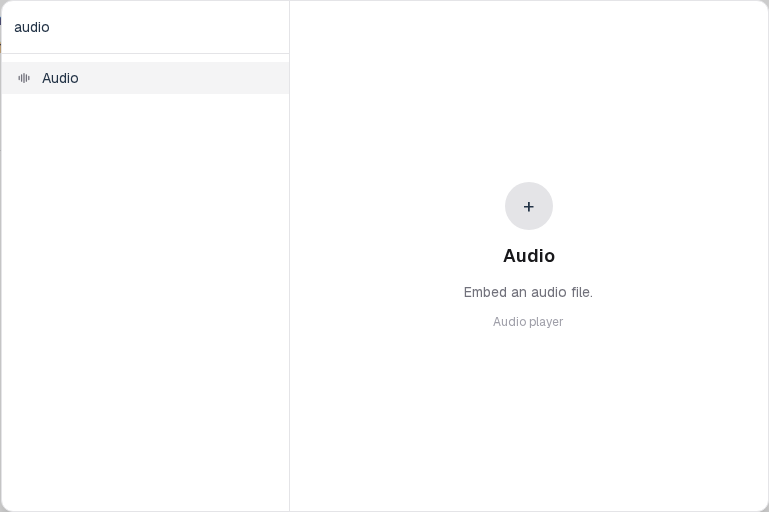
You will find this block in the Media group. See Question types for the full catalog.