Blocks
Conditional logic
Show, hide, require, or jump based on other answers.
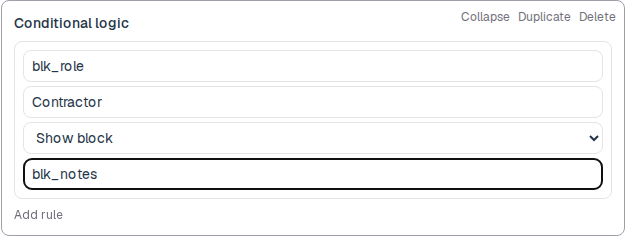
A conditional logic block holds rules. A rule has a condition and an action. The public form applies those rules while the person answers.
The condition uses a field id, an operator, and a value. The action can show, hide, or require a block, or jump to a page.
Screenshot placeholder
Insert a Short answer labeled Role, then Conditional logic. Set When field id to the Role id, equals to Contractor, action Show block, and a target block id. Capture the rule card.
Replace this box: save a PNG at public/docs-screenshots/block-conditional-logic.png
Use conditional logic when the path should change, such as:
- Show a details box only when the person picks Other.
- Require a file only for a paid plan.
- Jump to a later page after Yes.
How to add one:
- Add the questions the rule will read. Copy each id under the label.
- Open the form editor and click
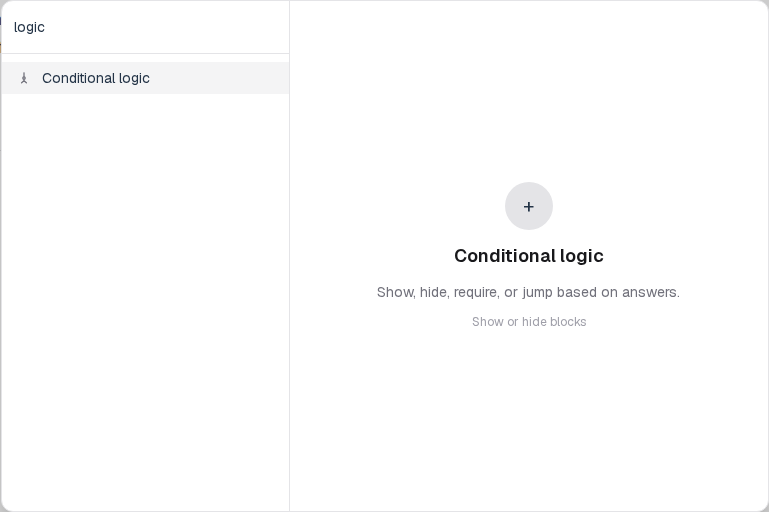
+ Insert block, or type/logic. - Pick
Conditional logicfrom the Advanced group. - Click Add rule. Enter the source field id, the equals value, the action, and the target id.
Screenshot placeholder
In the editor, open the insert dialog and filter to logic. Capture the Advanced group and the Conditional logic row.
Replace this box: save a PNG at public/docs-screenshots/block-conditional-logic-insert.png
| Operator | Meaning |
|---|---|
| equals / not equals | Exact match after the value is turned into text. |
| contains | The answer includes the given text. |
| greater than / less than | Numeric compare. |
| is empty / is not empty | Missing, blank, or empty list. |
You will find this block in the Advanced group. See Question types for the full catalog.