Blocks
Dropdown
Let the person pick one option from a closed menu.
A dropdown hides the options until the person opens the menu. They pick one. The response stores that option label.
The public field is a searchable menu. Typing matches text anywhere in an option, even when the option starts with a flag or other symbol.
Use it when the list is long, or when you do not want every option on the page at once.
Screenshot placeholder
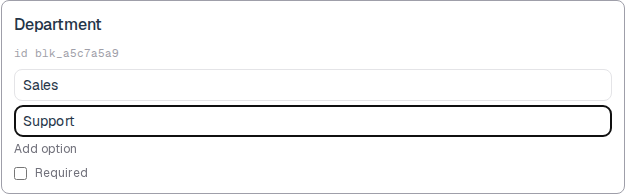
In the editor, insert Dropdown. Set the label to Department. Rename options to Sales and Support. Capture the card and both option rows.
Replace this box: save a PNG at public/docs-screenshots/block-dropdown.png
Use a dropdown when one closed choice is enough, such as:
- A department, region, or language.
- A long list that would crowd a radio group.
How to add one:
- Open the form editor and click
+ Insert block, or type/dropdown. - Pick
Dropdownfrom the Questions group. - Edit the label and the option list.
- To convert later, use
Block typeon the card. The option list stays when you switch between choice blocks.
Screenshot placeholder
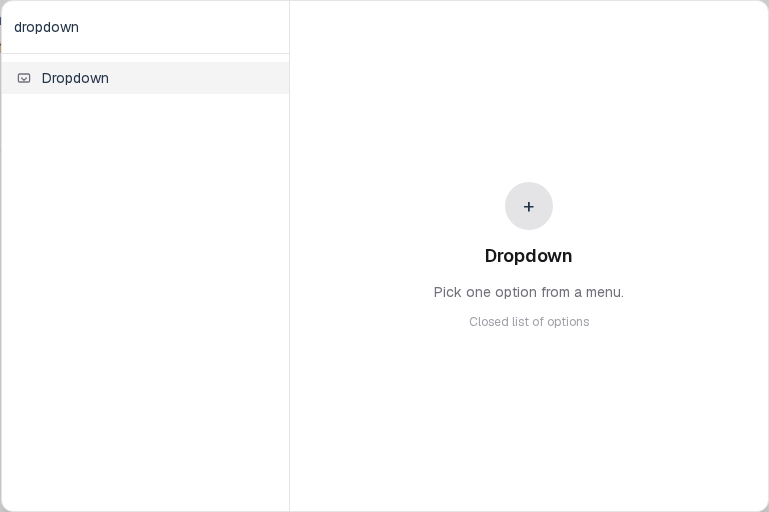
In the editor, open the insert dialog and filter to dropdown. Capture the Questions group and the Dropdown row.
Replace this box: save a PNG at public/docs-screenshots/block-dropdown-insert.png
You will find this block in the Questions group. See Question types for the full catalog.