Build
Form flow
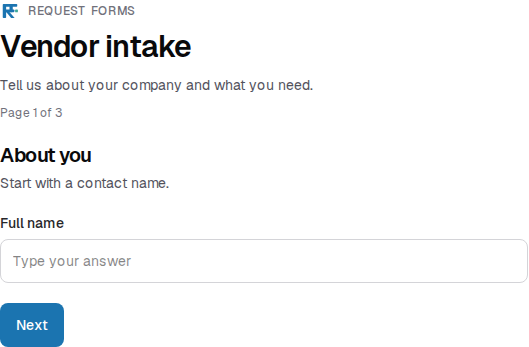
Pick a form flow in the editor toolbar, above the block list. The three previews below use the same vendor intake form.
Pages shows Next and Back. Section breaks group screens. If the form has no section breaks, Pages still paginates by heading or by question.
Screenshot placeholder
Open Preview on a form with section breaks and Pages selected. Capture the first screen, the page count, and Next.
Replace this box: save a PNG at public/docs-screenshots/form-flow-pages.png
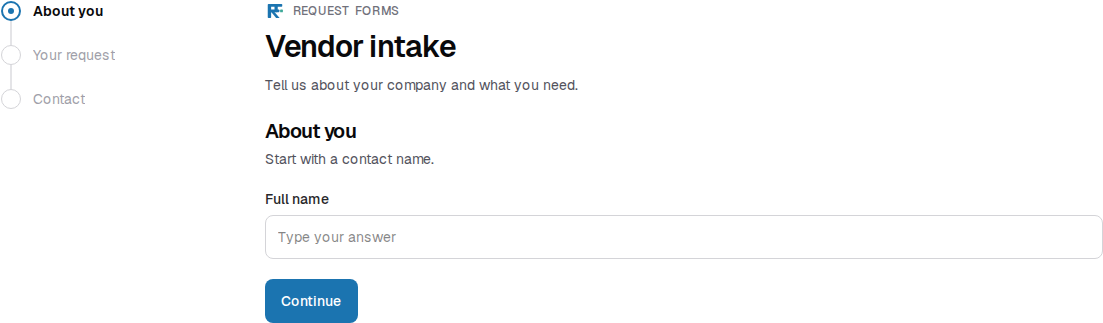
Stepper uses those same screens. It draws a progress line with a circle for each screen. The circle label is the section title, heading, or question. On a wide screen the circles sit in a left column. On a narrow screen they sit in a row above the form, and the current screen name sits under the active circle.
Screenshot placeholder
Open Preview on the same form with Stepper selected. Capture the left milestone column and the first screen.
Replace this box: save a PNG at public/docs-screenshots/form-flow-stepper.png
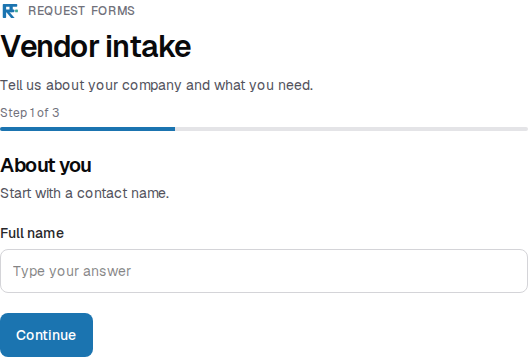
Focus draws a progress bar and says Question instead of Page. Section breaks group Focus the same way as Pages and Stepper. With no section break, Focus shows one question at a time.
Screenshot placeholder
Open Preview on the same form with Focus selected. Capture the progress bar, the question count, and Continue.
Replace this box: save a PNG at public/docs-screenshots/form-flow-focus.png
The last screen sends the response. That button defaults to Submit. Change the label with Submit in the editor toolbar.