Blocks
Image
Show an image from an HTTPS URL.
An image block embeds a picture from a URL. The public form shows the image. Respondents do not upload here.
The URL must use HTTPS.
Screenshot placeholder
In the editor, insert Image. Set the URL to https://requestforms.io/icon-192.png. Capture the URL field.
Replace this box: save a PNG at public/docs-screenshots/block-image.png

Use an image when the form should show a picture, such as:
- A logo or product photo.
- A diagram the person should see before they answer.
How to add one:
- Open the form editor and click
+ Insert block, or type/image. - Pick
Imagefrom the Media group. - Paste an HTTPS image URL.
Screenshot placeholder
In the editor, open the insert dialog and filter to image. Capture the Media group and the Image row.
Replace this box: save a PNG at public/docs-screenshots/block-image-insert.png
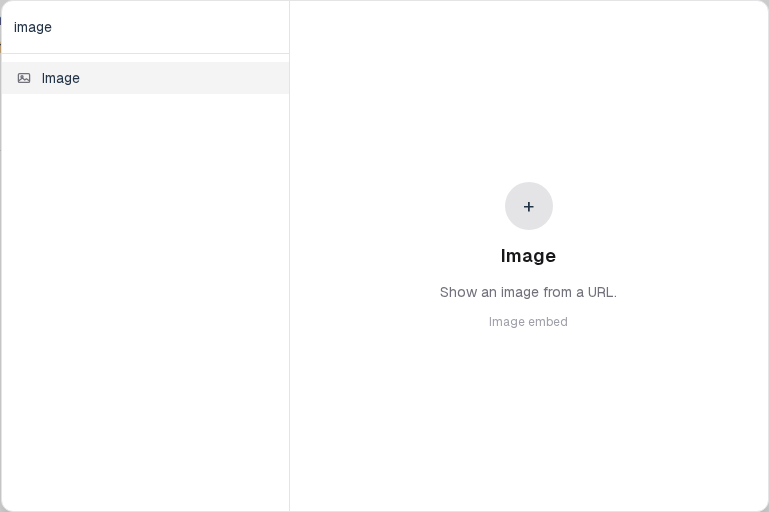
You will find this block in the Media group. See Question types for the full catalog.