Blocks
File uploads
Let the respondent attach a file. Private storage is on by default.
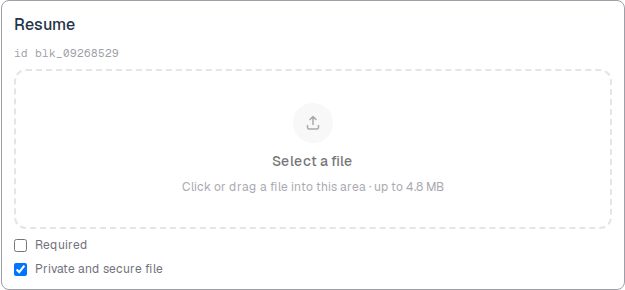
A file upload lets the person attach a file. The response stores a file name, type, and size. CSV export writes the file name, not the bytes.
A file upload has no size cap. Private and secure file is on by default. A private file is not on a public URL. Only people with access to the form can download it.
Screenshot placeholder
In the editor, insert File upload. Set the label to Resume. Capture the attach control, the id line, and the Private and secure file checkbox.
Replace this box: save a PNG at public/docs-screenshots/block-file-uploads.png
Use a file upload when you need an attachment, such as:
- A resume, invoice, or screenshot.
- Any document you will download from Responses.
How to add one:
- Open the form editor and click
+ Insert block, or type/file. - Pick
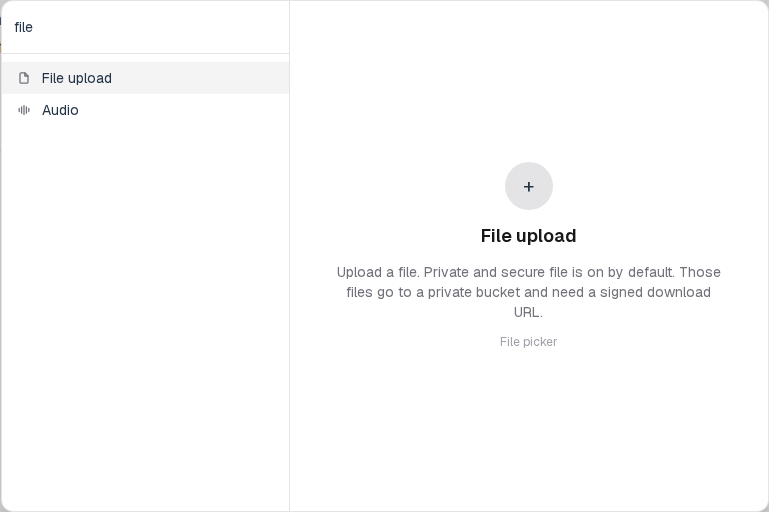
File uploadfrom the Questions group. - Edit the label. Leave Private and secure file on unless you need a public URL.
Screenshot placeholder
In the editor, open the insert dialog and filter to file. Capture the Questions group and the File upload row.
Replace this box: save a PNG at public/docs-screenshots/block-file-uploads-insert.png
You will find this block in the Questions group. See Question types for the full catalog.