Blocks
Section break
Start a new page or stepper circle. You control where Pages, Stepper, and Focus split. With no section break, Focus still shows one question at a time.
A section block starts a new screen on Pages, Stepper, and Focus. Questions above the block stay together. Questions below it start the next screen. The title is the page heading. On Stepper, that title is the milestone on the progress circle. Optional description is intro copy on the new screen. With no section break, Focus still shows one question at a time.
Form flow in the editor toolbar chooses Pages, Stepper, or Focus. Pages uses Next and Back. Stepper adds a circle for each screen. Focus shows a progress bar. Section breaks group every flow. With no section break, Focus still shows one question at a time. The last screen sends the response. That button defaults to Submit.
Screenshot placeholder
In the editor, insert Section break. Set the title to About you and add a short description. Capture the Section break label, title, and description.
Replace this box: save a PNG at public/docs-screenshots/block-section-break.png
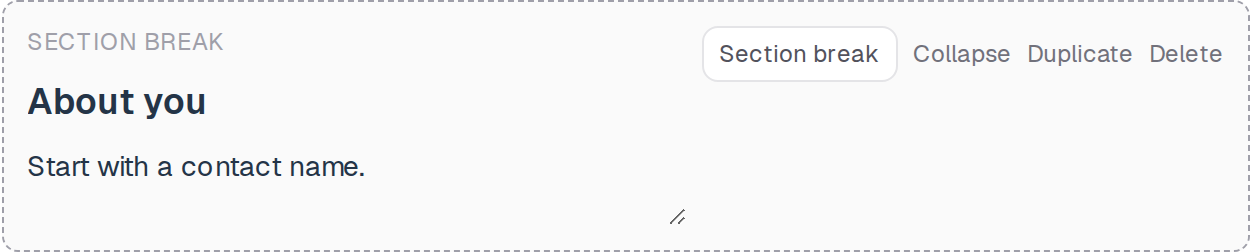
Use a section break when you want to control the flow, such as:
- Contact details on one screen, then the request on the next.
- Named stepper milestones for a long application.
- A short intro screen before a group of questions.
How to add one:
- Open the form editor and click
+ Insert block, or type/section. - Pick
Section breakfrom the Layout group. - Edit the title. Put the next questions under this block. Add a description if the new screen needs intro copy.
Screenshot placeholder
In the editor, open the insert dialog and filter to section. Capture the Layout group and the Section break row.
Replace this box: save a PNG at public/docs-screenshots/block-section-break-insert.png
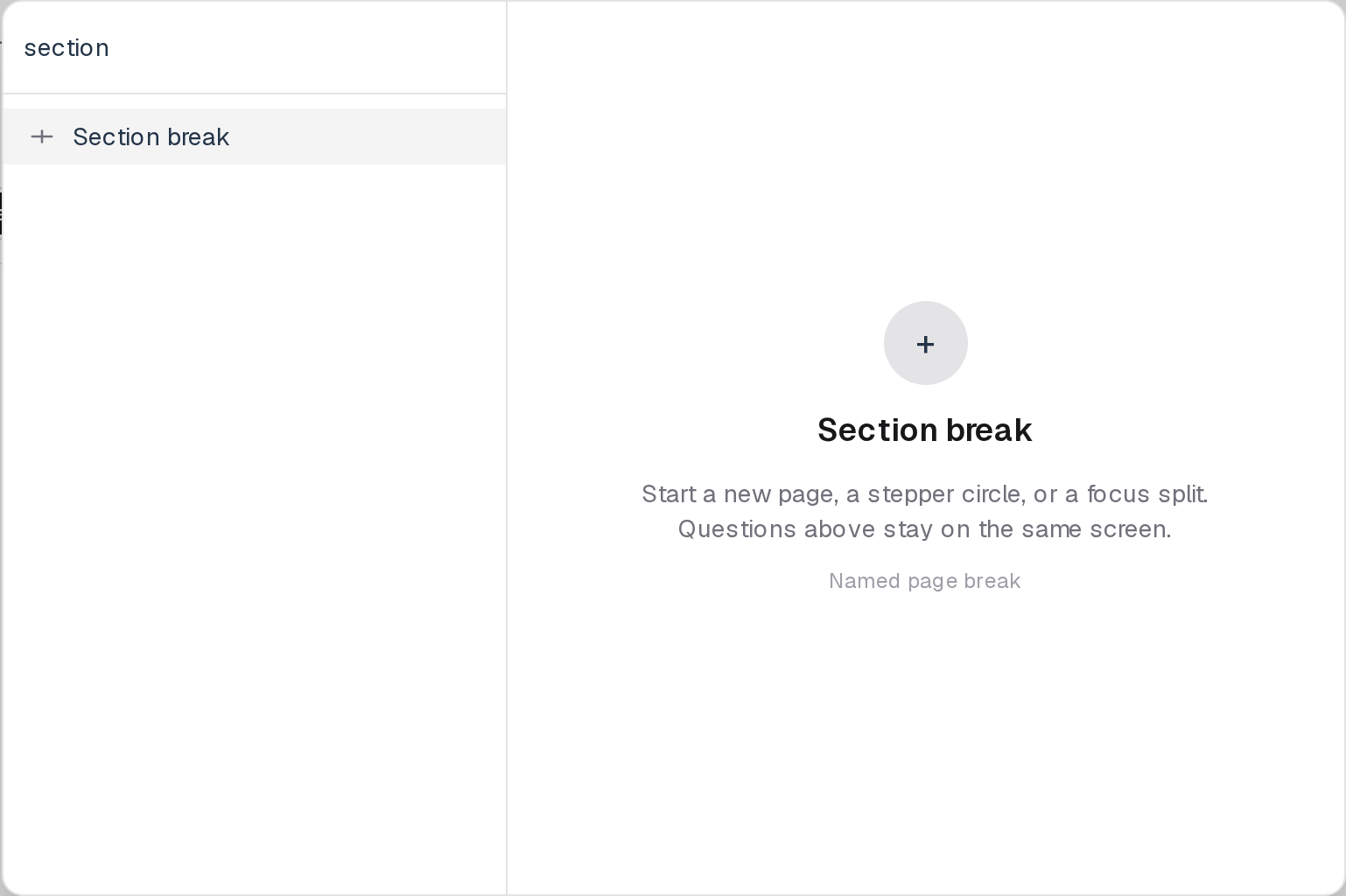
You will find this block in the Layout group. See Question types for the full catalog.